

Structured Data helps search engines understand the item being reviewed and its aggregate rating.
Divi Review Builder can add an AggregateRating JSON-LD block to selected pages. This is optional and disabled by default.
Enabling Structured Data does not guarantee that Google will display review stars.
Step 1: Open the settings
In your WordPress dashboard, go to:
Reviews → Structured Data
These settings are independent of your review modules. Adding a Review Summary or Review Badge does not automatically enable Structured Data.
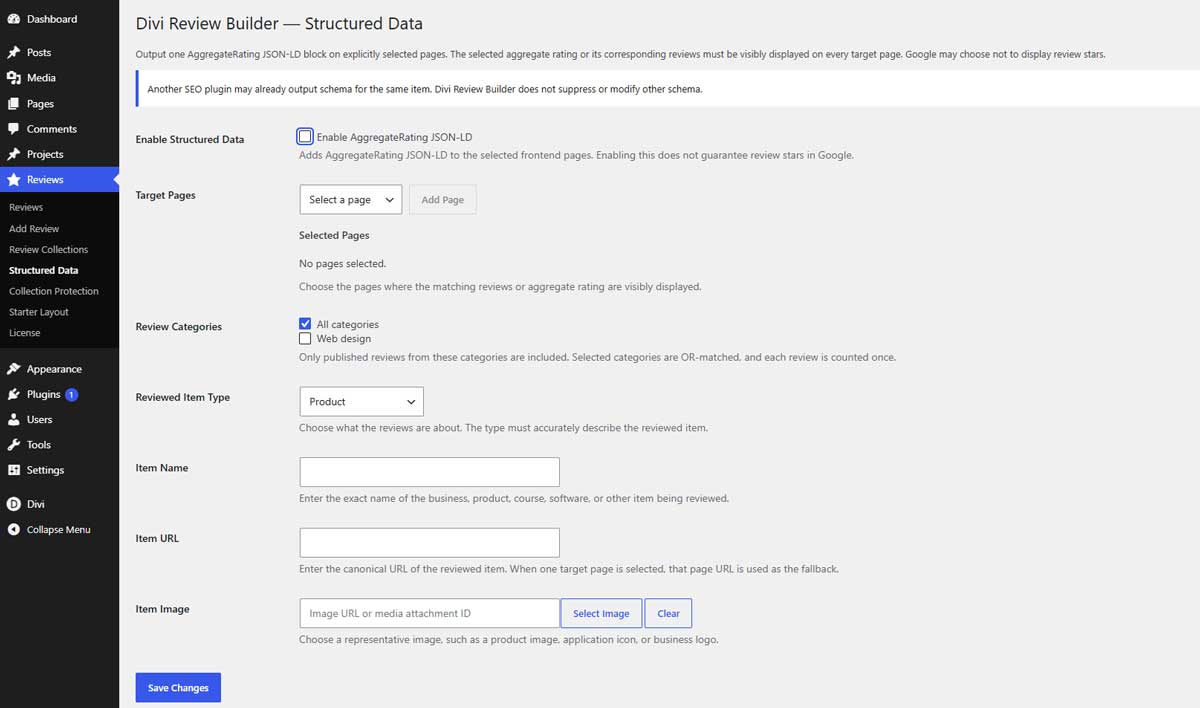
Step 2: Select your target pages
Under Target Pages, select a page and click Add Page.
Repeat for each page where the matching aggregate rating is visibly displayed.
For example, you can display the rating with a Review Summary or Review Badge configured to use the same reviews.
The plugin uses one reviewed-item configuration across the selected pages. Do not select pages about unrelated products or businesses.
Step 3: Choose the reviews to include
Under Review Categories, select the relevant review collections.
Choose All categories only when all included reviews concern the same item.
For example, if you are marking up ratings for a particular product, select its collection rather than combining reviews about several products.
When several collections are selected, a review assigned to more than one selected collection is counted only once.
Only eligible published reviews with valid ratings contribute to the aggregate.
Step 4: Describe the reviewed item
Choose the correct Reviewed Item Type.
Available types include Product, Software Application, Course, Event, Book, Recipe, Movie, Organization and Local Business.
The type must accurately describe what the reviews are about.
Complete:
- Item Name: The exact name of the reviewed item.
- Item URL: Its main URL. If you select only one target page, that page’s URL is used when this field is blank.
- Item Image: A representative image, such as a product image, application icon or business logo.
Type-specific fields
Additional fields appear for certain types:
| Type | Additional setup |
|---|---|
| Software Application | Enter the actual price and currency. You can also specify the application category and operating system. |
| Course | Enter a course description that matches the page content. |
| Event | Complete the required start date/time and venue details. |
| Recipe or Movie | Select an item image; it is required for the plugin to output these types. |
Use a price of 0 only when the software is genuinely free.
Step 5: Enable and save
Tick Enable AggregateRating JSON-LD under Enable Structured Data.
Click Save Changes.
The plugin outputs the markup on the selected frontend pages when the required configuration is complete and eligible rated reviews exist.
Step 6: Test your page
Open Google’s Rich Results Test and enter your published page URL.
Review the detected markup and any reported errors or warnings. The page must be publicly accessible for URL testing.
If another SEO or schema plugin also describes the same item, check for duplicate or conflicting markup. Divi Review Builder does not remove markup generated by other plugins.
Important Google limitations
Google does not allow self-serving Organization or Local Business reviews to qualify for review-star rich results. This includes reviews about your own business displayed on your own website.
Choose the accurate item type rather than changing it simply to pursue search-result stars.
Valid markup alone does not guarantee rich-result eligibility or display. See Google’s review snippet guidelines for its requirements.
Disabling Structured Data
Untick Enable AggregateRating JSON-LD and save.
This stops the plugin’s schema output without removing your reviews, summaries or badges.