

Activate your Divi Review Builder license to receive plugin updates on your website.
This guide applies to plugins downloaded from DiviForge or Mark Hendriksen All Access. The Elegant Themes Marketplace edition does not require a DiviForge license key.
Step 1: Find your license key
DiviForge customers
Log in to your DiviForge account and locate the license key for your Divi Review Builder purchase.
Copy the key.
All Access members
Log in to markhendriksen.com and open the protected All Access downloads page.
Find the Divi Review Builder section and use the license button to retrieve your key. If this is your first visit, a lifetime license will be generated for you.
Copy the key. Keep this key for future installations.
Step 2: Open the License screen
In your website’s WordPress dashboard, go to:
Reviews → License
If you do not see this menu, check that you installed the version downloaded from DiviForge or the All Access page.
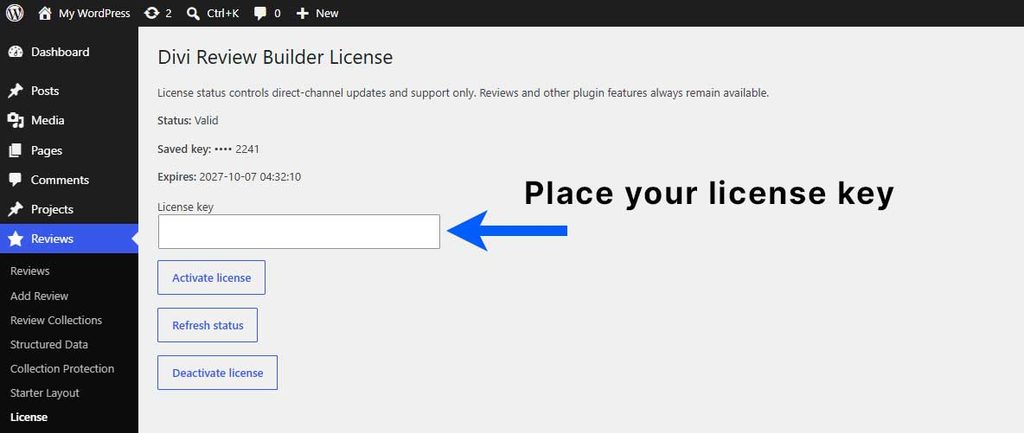
Step 3: Activate your license
Paste your key into the license field, then click Activate.
Wait for the activation result.
Step 4: Confirm activation
After successful activation, the license status should show Valid.
The screen also displays your license expiry:
- Annual: Your license has an expiry date.
- Lifetime: Your license shows Lifetime.
Your website can now receive available Divi Review Builder updates through WordPress.
Checking your license status
Click Refresh status on the License screen to check the current status with DiviForge.
Moving to another website
To remove the activation from this website, open Reviews → License and click Deactivate.
Deactivating the license does not delete your reviews, layouts or settings.
Having trouble?
Check that you copied the complete key and that it belongs to Divi Review Builder. If activation still fails, contact support with the error message shown on the screen. Do not include your full license key in public screenshots.