

Reviews can contain an image, an uploaded video, or a YouTube/Vimeo video. You can also add a separate customer profile photo.
Use the Review Media module in your layout to display the review’s content image or video.
Step 1: Open the review
Go to Reviews → All Reviews and add a new review or edit an existing one.
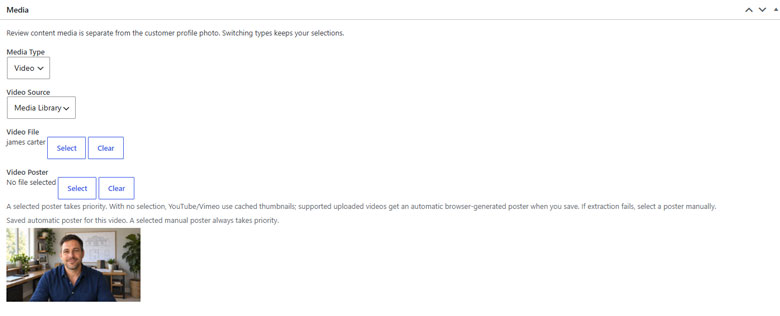
Find the Media panel.
Step 2: Choose the media type
Set Media Type to:
- None: Display no content image or video.
- Image: Attach an image to the review.
- Video: Attach an uploaded or external video.
Switching media types keeps your existing selections, so you can switch back without selecting the files again.
Adding an image
Choose Image, then click Select beside Review Image.
Select an existing image from the Media Library or upload a new one.
Adding an uploaded video
Choose Video, then set Video Source to Media Library.
Click Select beside Video File and choose your video.
Uploaded videos play using native browser video controls.
The video’s attachment file must remain available on your WordPress server. Video files offloaded exclusively to remote storage are not currently supported for review playback.
Adding a YouTube or Vimeo video
Choose Video, then set Video Source to External URL.
Paste the video URL into External Video URL.
Use the video’s URL—not iframe or embed HTML. The external player loads when a visitor activates the play button.
Step 3: Choose a video poster
A poster is the preview image shown before the video plays.
Click Select beside Video Poster to choose an image.
A manually selected poster takes priority over automatic previews.
If no poster is selected:
- YouTube/Vimeo: The plugin attempts to retrieve a provider thumbnail.
- Uploaded video: For supported videos, the admin screen attempts to generate a poster in your browser when you save.
If automatic generation fails or the preview is unsuitable, select a poster manually.
Step 4: Add a profile photo
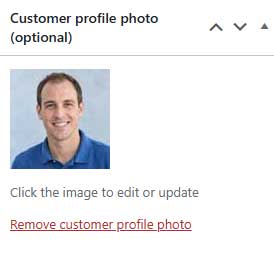
The Customer profile photo is separate from the review’s content media.
Use Set customer profile photo to select the reviewer’s portrait.
For example, a review can have both a customer portrait and a video. Your layout determines where each appears.
Step 5: Save and check
Click Update, or Publish for a new review.
Open a page that displays the review and check:
- The image or video preview appears.
- The video plays correctly.
- The poster and customer photo are correct.
- The layout fits desktop, tablet and phone screens.
Make sure your layout contains a Review Media module connected to the review loop.
Styling the media
Open the Review Media module in the Visual Builder.
Use its Design settings to adjust the media and play button. The Overlay settings control reviewer information displayed over the media.
Removing a selection
Use Clear beside an image, video or poster field to remove that selection, then save the review.
Choose Media Type → None if you want the review to display without content media.
Troubleshooting
If an uploaded video does not play, confirm that its file is still available and its format is supported by the visitor’s browser.
If an external video does not play, check the URL and the provider’s embedding restrictions.
If a poster is missing, select one manually. For an oversized upload, check your WordPress and hosting upload limits.