

Divi Review Builder supports optional Cloudflare Turnstile protection to help reduce automated spam submissions.
Turnstile is disabled by default. You can use review collection forms without it.
Setup has two parts: save your Cloudflare keys in WordPress, then enable protection on each form you want to protect.
Step 1: Create a Cloudflare Turnstile widget
Log in to your Cloudflare account and open Turnstile.
- Click Add widget.
- Enter a descriptive name, such as “Website Review Form.”
- Add your website’s hostname, such as
example.com. Do not includehttps://or a page path. - Choose Managed as the widget mode.
- Click Create.
Cloudflare provides a Site key and a Secret key.
You do not need to move your website’s hosting or DNS to Cloudflare to use Turnstile.
Step 2: Save the keys in WordPress
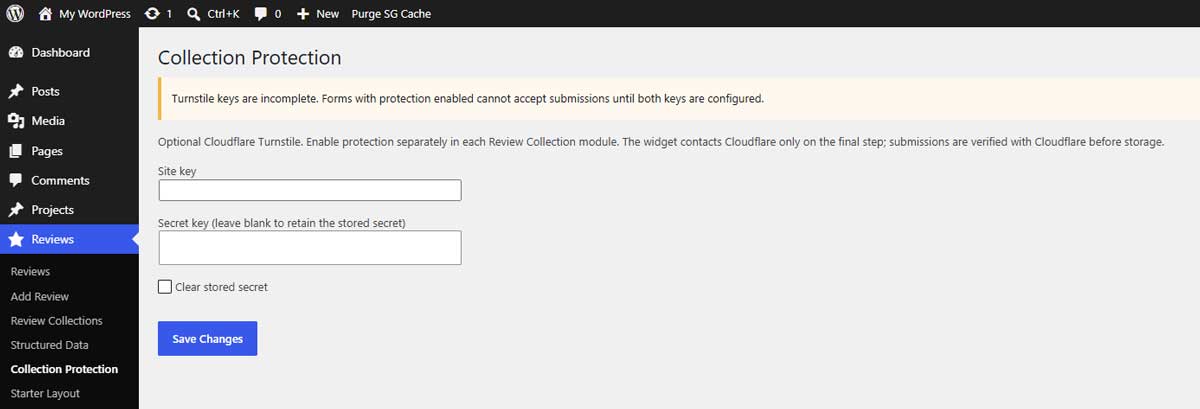
In your WordPress dashboard, go to:
Reviews → Collection Protection
Paste the corresponding values into:
- Site key
- Secret key
Click Save Changes.
Keep the secret key private. Do not include it in public screenshots or page content.
Step 3: Enable protection on your form
Open your review collection page in the Divi Visual Builder.
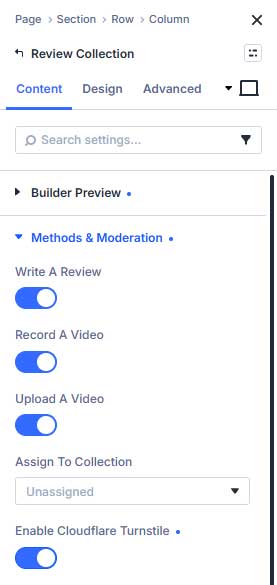
Select the Review Collection module, then open:
Content → Methods & Moderation
Set Enable Cloudflare Turnstile to On.
Save the page.
Saving keys does not automatically enable protection everywhere. Repeat this step for each form you want to protect.
Step 4: Test the published form
Exit the Visual Builder and open the published page.
Complete a test submission. Turnstile loads on the final form step, and the plugin verifies the result with Cloudflare before saving the review.
Depending on Cloudflare’s assessment, verification may complete automatically or require visitor interaction.
Confirm that the submission succeeds and appears under Pending reviews.
Updating your keys
Return to Reviews → Collection Protection to update the keys.
The secret field appears blank after saving. This is intentional: leaving it blank when saving again retains the stored secret.
Enter a new secret when replacing it. Use Clear stored secret only when you intend to remove it.
Disabling protection
Open the Review Collection module and turn Enable Cloudflare Turnstile off, then save the page.
Do this on every protected form before removing its keys.
Forms with Turnstile enabled cannot accept submissions when the required keys are missing or verification fails.
Troubleshooting
If verification fails, check that:
- Both keys belong to the same Cloudflare widget.
- Your website’s hostname is allowed in the widget settings.
- The published page and server can connect to Cloudflare.
- A browser extension or optimization setting is not blocking Turnstile.
Reload the form and try again after correcting the configuration.
External service
When enabled, the form uses Cloudflare for verification. Include this service in your website’s privacy information where appropriate.