

Review Collections organize your reviews into groups. Use them to display different reviews on different pages or calculate ratings for a particular service, product or business.
For example, you could create collections named Web Design, Website Maintenance and Consulting.
A review can belong to more than one collection.
Step 1: Create a collection
In your WordPress dashboard, go to:
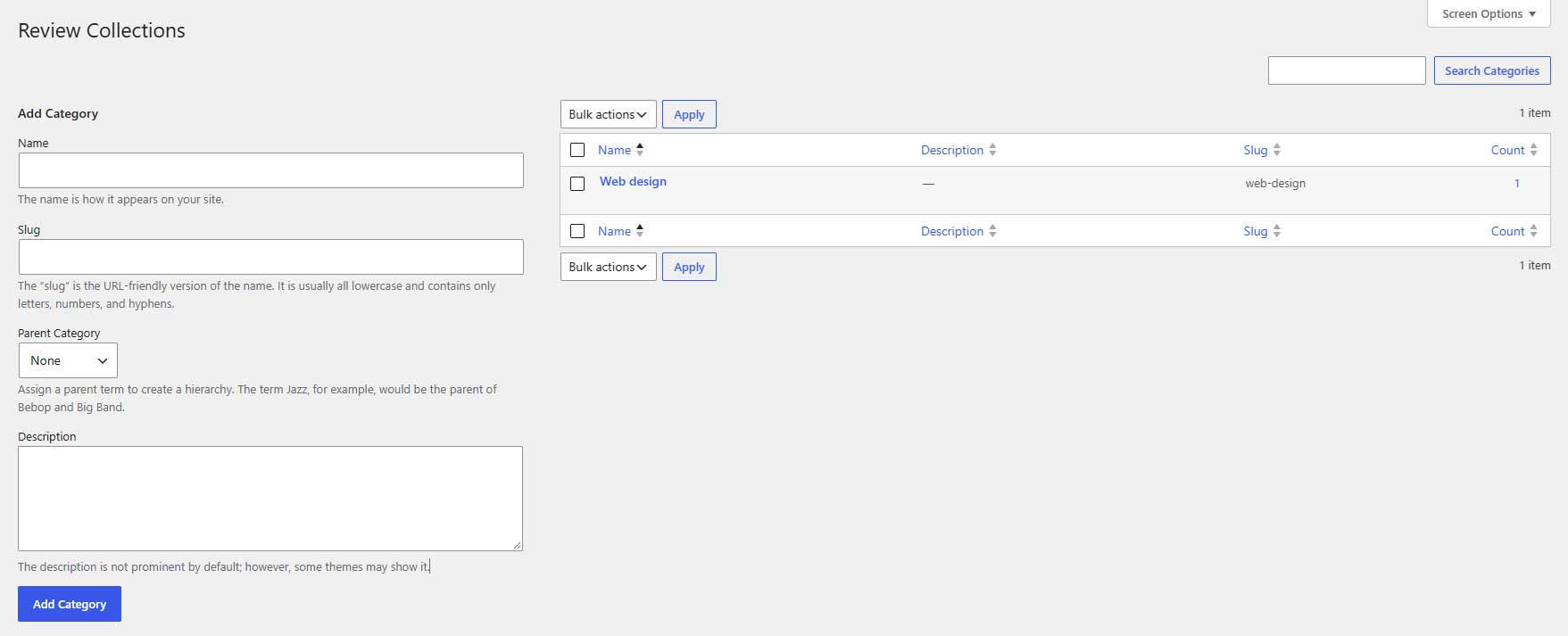
Reviews → Review Collections
Enter a Name for your collection.
You can also configure:
- Slug: The collection’s identifier. Leave it blank to let WordPress generate it.
- Parent: Select an existing collection if this should be a child collection.
- Description: Add an optional description.
Click Add New Review Collection.
Step 2: Assign reviews to the collection
Go to Reviews → All Reviews and open a review.
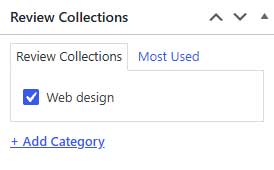
In the Review Collections panel, tick the collections that apply.
Click Update, or Publish for a new review.
Repeat this for any other reviews you want to include.
Assigning a collection does not publish a review. Draft and pending reviews remain excluded from public displays.
Step 3: Filter a review layout
Open your review display page in the Divi Visual Builder.
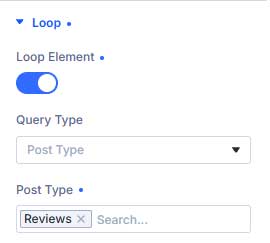
Select the element containing the existing Reviews loop, then open Content → Loop.
Use the taxonomy filters to select the relevant Review Collections.
The layout will display eligible published reviews that match its query.
See Displaying Reviews on a Page for more information.
Step 4: Filter a Summary or Badge
For a Review Summary or Review Badge, open:
Content → Source
Set Review Source to Selected Collection, then choose your collection.
These modules have independent source settings. Filtering a nearby review layout does not automatically filter its Summary or Badge.
When a parent collection is selected, their calculations also include eligible rated reviews from its child collections.
Step 5: Assign form submissions automatically
Open the Review Collection form module on your collection page.
Under Content → Methods & Moderation, use Assign to Collection to select the collection for new submissions.
Save the page.
New submissions will be assigned to that collection and saved as Pending Review.
Note: Review Collections are groups of stored reviews. The Review Collection module is the form visitors use to submit reviews.
Editing a collection
Return to Reviews → Review Collections and click Edit beneath the collection.
Update its name, parent or description, then save.
If you create or rename a collection while the Visual Builder is open, reopen the builder to refresh its collection choices.
Deleting a collection
Deleting a collection does not delete its reviews.
However, layouts, forms, summaries or badges that reference it may need their settings updated. Check those settings and select another collection where appropriate.
Why is my collection empty?
Check that reviews are assigned to it and published.
For Summaries and Badges, reviews also need a valid rating from 1 to 5 to contribute to the displayed results.