

The Verified review flag lets you identify reviews that you have verified through your own process.
Verification is separate from publication. A review can be published without being marked as verified.
Divi Review Builder does not automatically verify purchases or customer identities.
Step 1: Verify the review
Before enabling the flag, confirm that your verification process supports the claim—for example, by checking that the reviewer is a genuine customer.
Only mark reviews as verified when you have a suitable basis for doing so.
Step 2: Mark the review as verified
Go to Reviews → All Reviews and open the review.
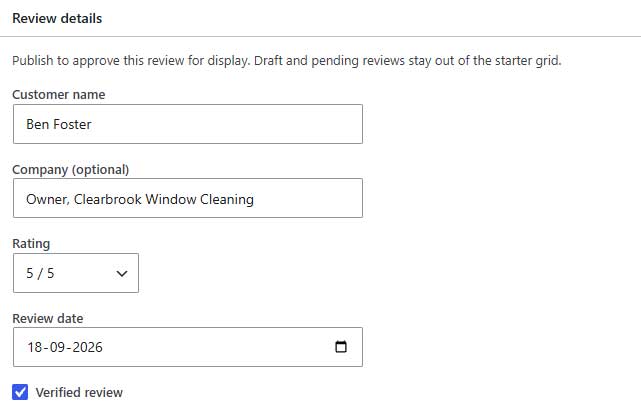
In the Review details panel:
- Tick Verified review.
- Click Update, or Publish if you are also ready to publish it.
Using Quick Edit
You can also change the flag without opening the full editor:
- Find the review in Reviews → All Reviews.
- Click Quick Edit.
- Tick Verified Review.
- Click Update.
The Verified column shows which reviews have the flag enabled.
Step 3: Enable the badge in your layout
Open your review display page in the Divi Visual Builder.
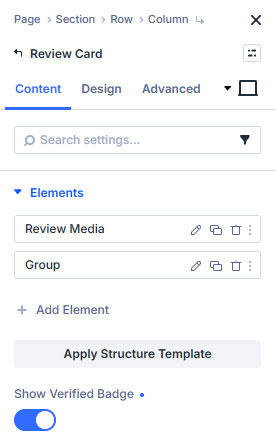
Select the Review Card that contains your review elements, then open:
Content → Elements → Show Verified Badge
Enable this option.
Make sure the card displays the reviewer’s name through Content → Review Detail → Reviewer Name.
The badge appears beside the name for reviews marked as verified. Unverified reviews do not receive a badge.

Step 4: Style the badge
In the Review Card settings, open Design → Verified Badge.
You can adjust:
- Badge Size
- Badge Gap
- Badge Color
- Badge Icon Color
- Video Overlay Badge Color
- Video Overlay Badge Icon Color
The video overlay colors let you adapt the badge for reviewer names displayed over video previews.
Step 5: Save and check
Save your page, exit the Visual Builder, and check a verified review on the frontend.
If the badge is missing, confirm that the review is marked as verified, Show Verified Badge is enabled, and the reviewer’s name is displayed.
Removing verification
Untick Verified review in the editor or Quick Edit, then save.
This removes the verification flag without changing the review’s publication status.
Does verification affect ratings?
Verification does not change the review’s rating or determine whether it contributes to summaries and rating badges.
Those calculations depend on publication status, public eligibility and a valid rating.
The verified badge identifies an individual review. The separate Review Badge module displays an aggregate rating and review count.