

Reviews submitted through your Review Collection form are saved as Pending Review. They remain hidden from public review displays until you publish them.
Publishing is how you approve a review for display.
Step 1: Open pending reviews
In your WordPress dashboard, go to Reviews → All Reviews.
Click the Pending tab to see submissions awaiting review.

Step 2: Check the submission
Click the review’s title or Edit to open it.
Check:
- The review text and title.
- The customer’s name and company.
- The rating and review date.
- Any submitted images or video.
- Its assigned review collections.
For video submissions, check that the video plays correctly and that its poster image is suitable.
If you make editorial corrections, preserve the meaning of the customer’s feedback.
Step 3: Check its collections
Confirm that the review belongs to the appropriate Review Collections.
Collections determine where the review can appear when your layouts, summaries or badges use collection filters.
Step 4: Publish the review
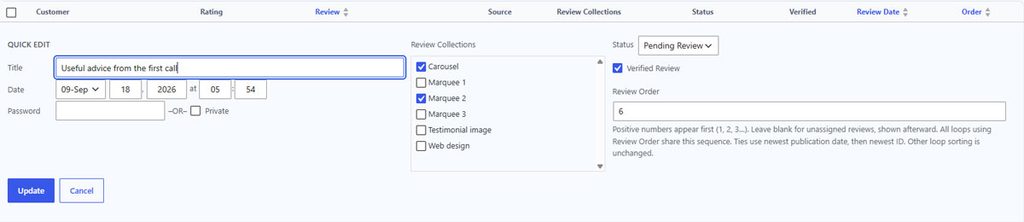
When the review is ready, click Publish.
Its status changes to Published, making it available to public review displays.
Publishing does not guarantee that it appears in every layout. Each layout’s filters, sorting and review limit still apply.
Step 5: Check your website
Open a page that displays the relevant reviews and confirm that the published review appears as expected.
If the page shows older content, clear its page or hosting cache.
Keeping a review unpublished
Leave a submission Pending while it awaits a decision.
Use Draft when you want to keep the review for further editing without making it public.
To remove a published review from public displays, change its status to Draft and save the change.
Rejecting a submission
If you do not want to retain a submission, move it to Trash.
Trashed reviews are excluded from review displays and rating calculations. You can restore a review from the Trash if needed; check its status afterward.
Published and verified are different
Published means the review is approved for public display.
Verified is a separate flag that you set based on your own verification process. Publishing a review does not automatically verify it.
See Verified Reviews for details.
Which reviews affect ratings?
Summaries and badges include only published, non-password-protected reviews with a valid rating from 1 to 5.
An unrated review can appear in a review layout after publishing, but it does not contribute to the average rating, rated review count or rating breakdown.