

The Review Summary module displays your average rating, review count and rating breakdown.
You can show results for all reviews or a selected review collection. The module works independently and does not need a Reviews loop.
Step 1: Add the module
Open your page in the Divi Visual Builder.
Add the Review Summary module to a row, or insert a Summary Starter Layout from your Divi Library.
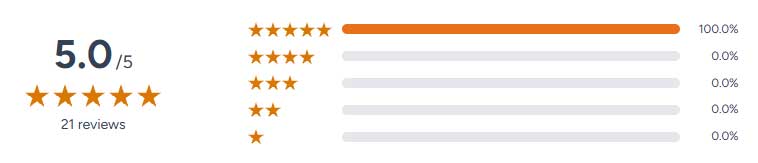
Step 2: Choose your review source
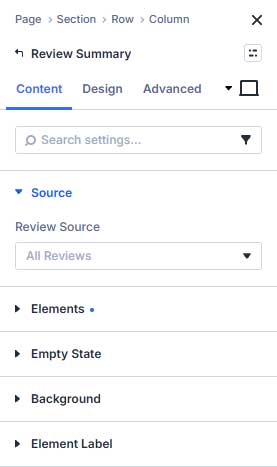
Open Content → Source and select a Review Source:
- All Reviews: Calculate results across your eligible reviews.
- Selected Collection: Calculate results for a specific review collection.
If you choose Selected Collection, select the collection in the field below. Reviews assigned to its child collections are also included.
The Summary has its own source settings. It does not automatically follow the filters or review limit of a nearby carousel, grid or marquee.
Step 3: Choose what to display
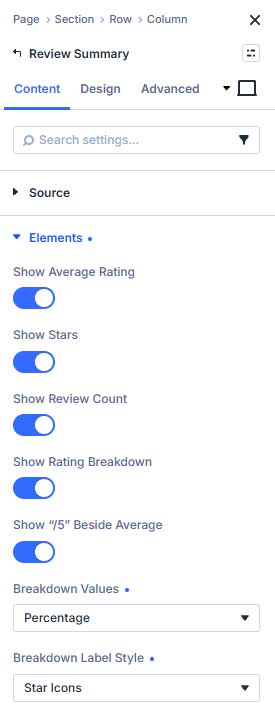
Under Content → Elements, enable or disable:
- Show Average Rating
- Show Stars
- Show Review Count
- Show Rating Breakdown
You can also choose whether to display /5 beside the average.
For the rating breakdown, set Breakdown Values to Count, Percentage or Both.
Use Breakdown Label Style to choose between Text, Number + Star and Star Icons.
Step 4: Adjust the layout
Open Design → Layout.
Choose Side by Side or Stacked, then adjust the alignment, padding and spacing.
For a side-by-side layout, Column Ratio controls the space allocated to the score and breakdown.
Use Average-to-Stars Spacing to adjust the distance between the average rating and its stars. Setting it to 0 removes the added layout gap between them.
Use Divi’s responsive controls to configure the layout for desktop, tablet and phone.
Step 5: Style the summary
The Design tab provides separate settings for:
- Average Rating: Typography for the average score.
- Review Count: Typography for the review count.
- Stars: Plain or Boxed stars, with size, colors and spacing controls.
- Breakdown: Bar colors, height, corners and row spacing.
- Label Typography / Label Stars: Styling for the selected breakdown labels.
The main rating stars and the stars used in breakdown labels can be styled independently.
Step 6: Choose an empty state
Under Content → Empty State, choose what happens when the selected source has no eligible rated reviews:
- Show Message: Display your custom message.
- Hide Module: Hide the module on the frontend.
A hidden empty module still shows a placeholder in the Visual Builder so you can edit it.
Step 7: Save and check
Save the page and exit the Visual Builder.
Check the source, displayed values and responsive layout on the frontend.
How the ratings are calculated
The summary includes published, non-password-protected reviews with a valid rating from 1 to 5.
Pending, draft, private, trashed and unrated reviews are excluded from the average, count and breakdown.
Changes to reviews update the plugin’s aggregate calculations. If the frontend still shows older results, clear your page or hosting cache.